
Short answer:
Outlook shared mailboxes cannot support both the correct From address and automatic email signatures at the same time. This is a Microsoft limitation. You must choose a workaround depending on what matters most: sender accuracy or signature automation.
When working with shared mailboxes in Outlook, two different access modes behave differently—and neither supports both the correct From address and email signature at the same time.
This limitation is caused by how Microsoft handles shared mailboxes versus full user accounts.
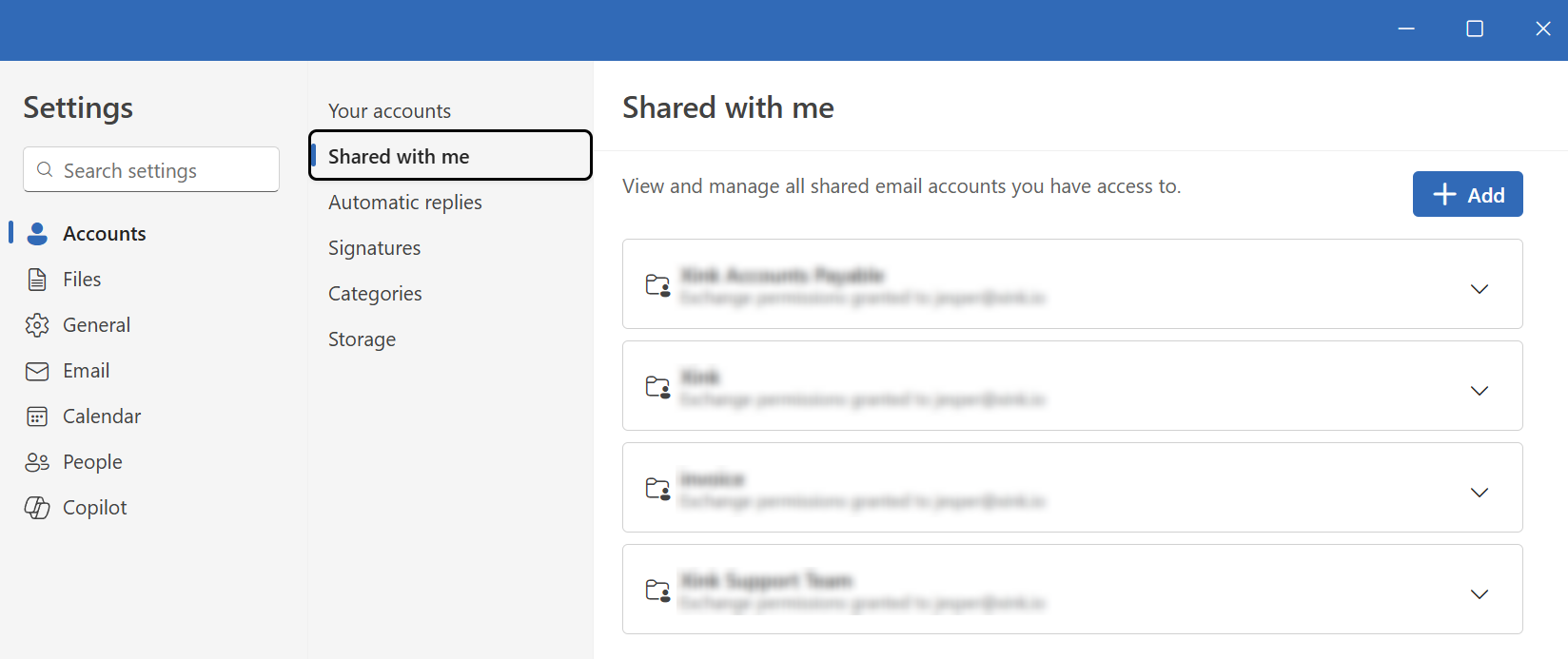
Shared with me
Outlook treats the shared mailbox as an extension of the primary user.
Result:
- ✅ Signature add-ins work (run in the context of the primary user)
- ❌ The From address defaults to the primary account unless changed manually
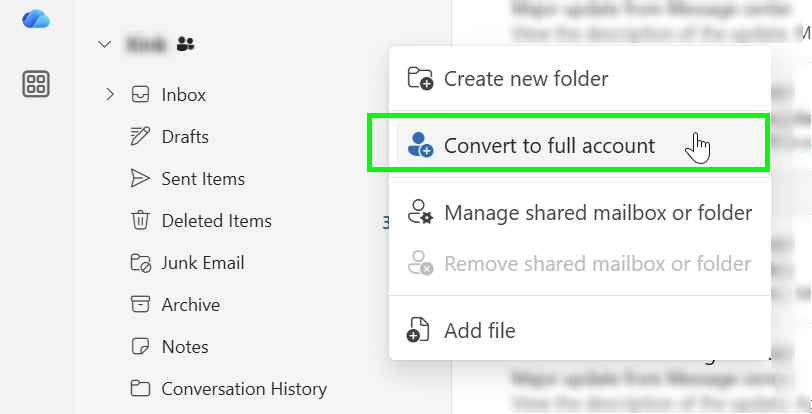
Converted to full account
Outlook treats the mailbox as a separate account.
Result:
- ❌ Signature add-ins do not run unless the mailbox is logged into directly
- ✅ The From address is correct by default
In practice, Outlook forces a trade-off:
- Automatic signature injection
- Correct From address
Not both.
Practical workarounds
Workaround 1: Shared with me + Send As
Best overall compromise
- Keep the mailbox as Shared with me
- Grant Send As permissions (not “Send on behalf”)
- Train users to:
- Expand the From field
- Select the shared mailbox when sending
Pros
- Signatures work
- No extra licenses required
- Low technical complexity
Cons
- Depends on user behavior
- Risk of sending from the wrong address
Workaround 2: Full account with background login
Only suitable for small teams
- Convert the shared mailbox to a full account
- Assign a license
- Log into the mailbox directly in Outlook at least once
In some cases, this activates add-ins for that mailbox.
Reality check
- Behavior is inconsistent
- May stop working without notice
- Not officially supported by Microsoft
Workaround 3: Hybrid approach (add-in + server-side)
Most technically reliable option
- Use add-in signatures for personal mailboxes
- Do not use the add-in for shared mailboxes
- Apply simple server-side signatures to shared mailboxes
Pros
- Correct From address
- No client dependency
- Consistent behavior
Cons
- No signature preview in Outlook
- Limited personalization
Bottom line
There is no setup that supports all of the following at the same time:
- Correct From address
- Automatic client-side signatures
- No user interaction
- No additional license
Recommended approach
Use Shared with me with Send As permissions, and train users to select the correct From address when sending emails.
Related guide
For setup instructions, see how to assign email signatures for shared mailboxes and alias emails.
